
OpenCTI for Analysts: Sections, Pivots, and Good Data Hygiene (1 of 4)
By Mario Rojas, Senior Security Researcher, ORYXLABS
28 نوفمبر 2025This post is the first in a series on OpenCTI to help anyone new to Cyber Threat Intelligence (CTI) learn how to use it as their primary Threat Intelligence Platform (TIP). There are already plenty of install guides online, but very few on how to use OpenCTI day-to-day as an analyst. This series will use the free OpenCTI demo instance so you can follow along without setup.
If you already run OpenCTI or prefer a self-hosted environment, you can still follow the exact same steps.
Why this series exists
You probably already know how to find indicators (feeds, reports, articles, etc). The hard part is deciding what deserves action. In OpenCTI, the fastest path to good decisions is to start with context, confirm provenance, and only then dip into raw items. Read the UI in that order and you will spend less time chasing noise and more time producing work your SOC can stand behind.
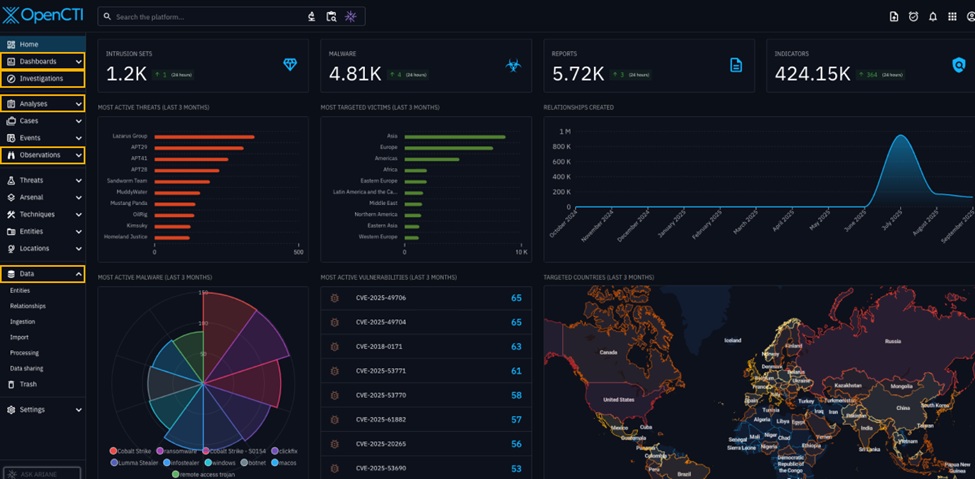
The analyst’s UI tour
Threats
Begin here. Open Intrusion Sets, Threat Actors, or Campaigns and orient yourself to the story before touching any indicators. For example, we might look for a well-known APT (Advanced Persistent Threat) such as MuddyWater.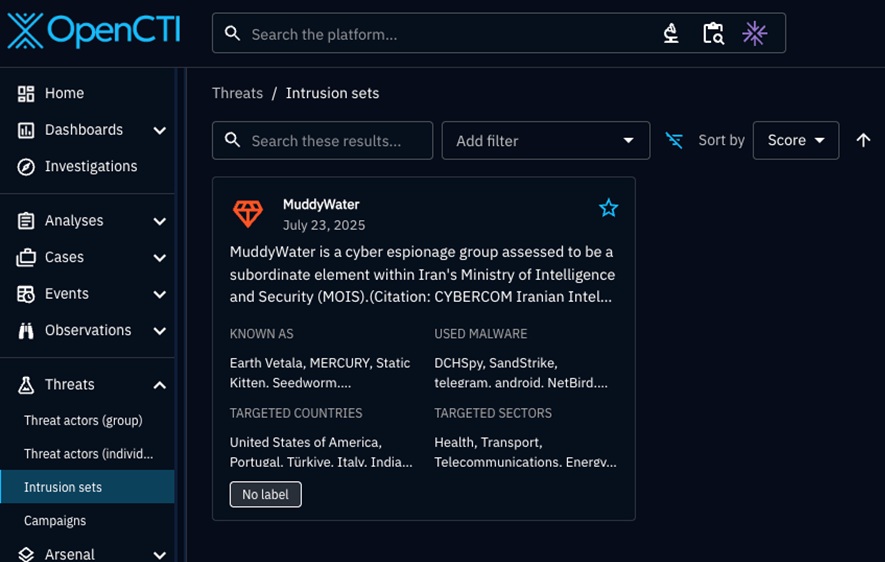
When you start at the threat layer, you see families of activity, typical tooling, and the kind of infrastructure the actor prefers. That gives you a mental model to compare against anything you find later.
Analysis
Let’s move to Reports and Malware Analyses linked to the same APT.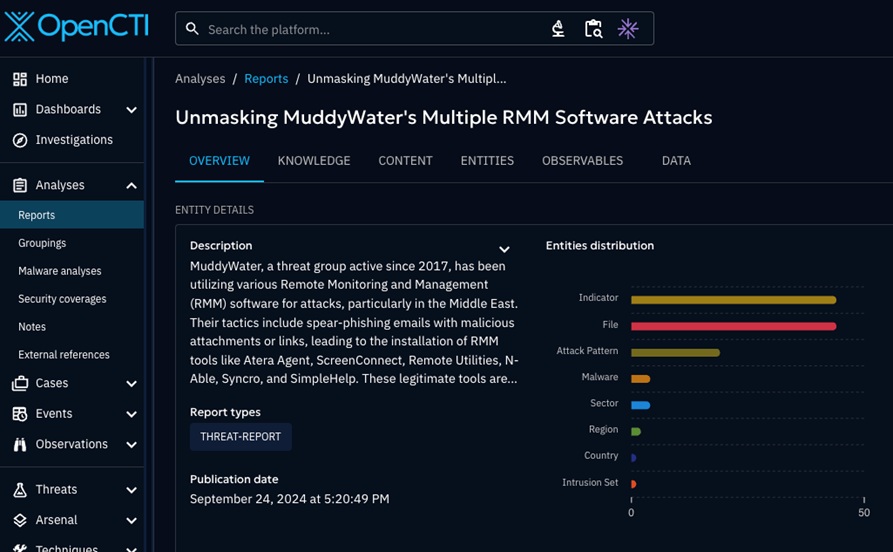
Reports tell you who said what, under which markings, and on what timeline. If a relationship appears here consistently across multiple reports, you can treat it with more confidence than a single feed hit.
Observations
Now let’s check Observables, Artifacts, and Indicators. Filter by source, last seen, and markings. When threat hunting, you are not collecting everything; you are testing whether any of these items actually fit the story you just learned.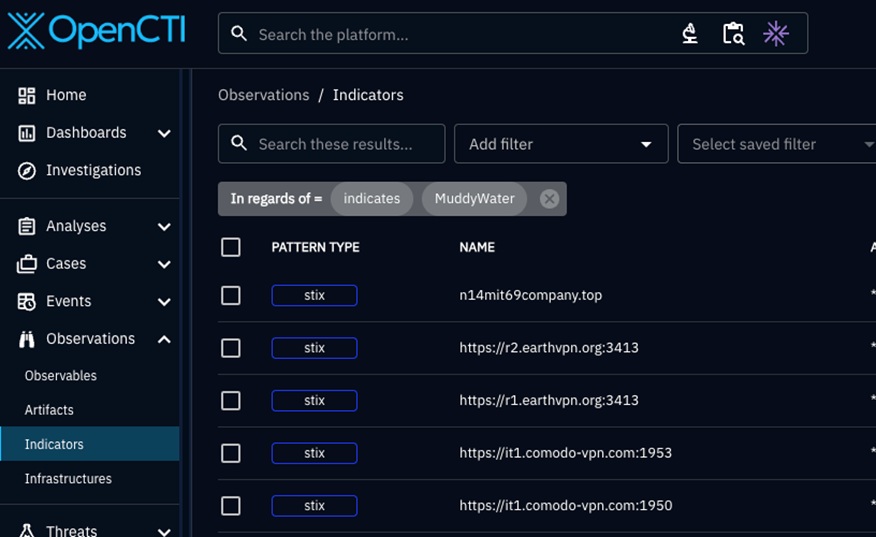
Items that match the actor’s known patterns and have recent sightings climb to the top of the queue.
Pivot and investigate
You can use the Investigations section to build a small, deliberate graph around the same actor. Start with Observables, then toggle Analysis if you need to see the supporting reports.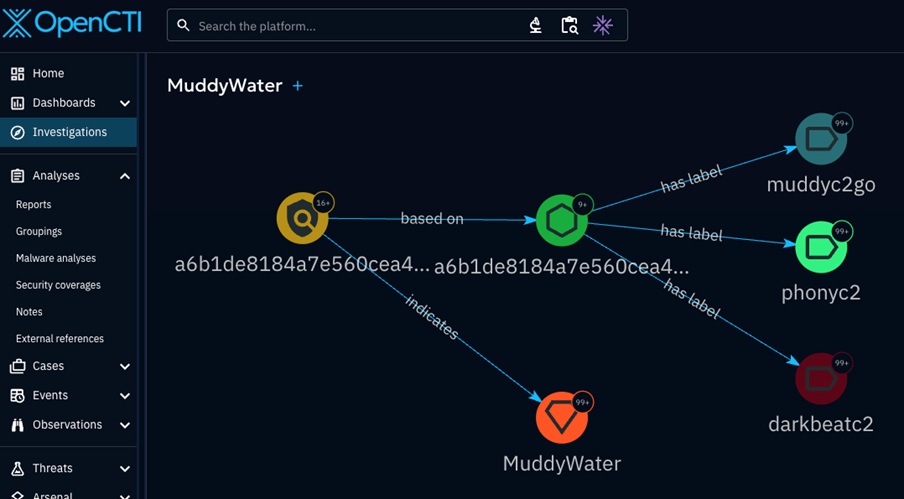
Keep it tight. If the view becomes a galaxy, you have already lost precision. Trim until you can explain each node in one sentence.
Dashboards
Before you close the session, glance at the Dashboards to capture what changed, especially custom ones (Don’t worry, we will show you how to create these).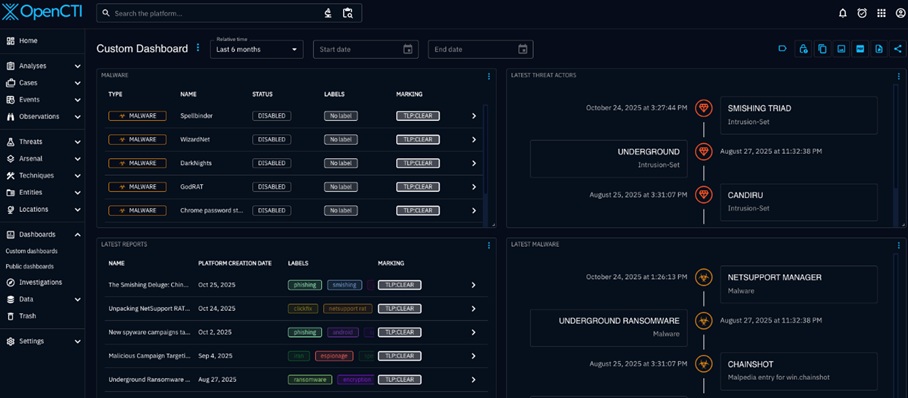
Trends and counts help you decide whether to escalate, brief, or park a thread until you have more.
Governance you can see
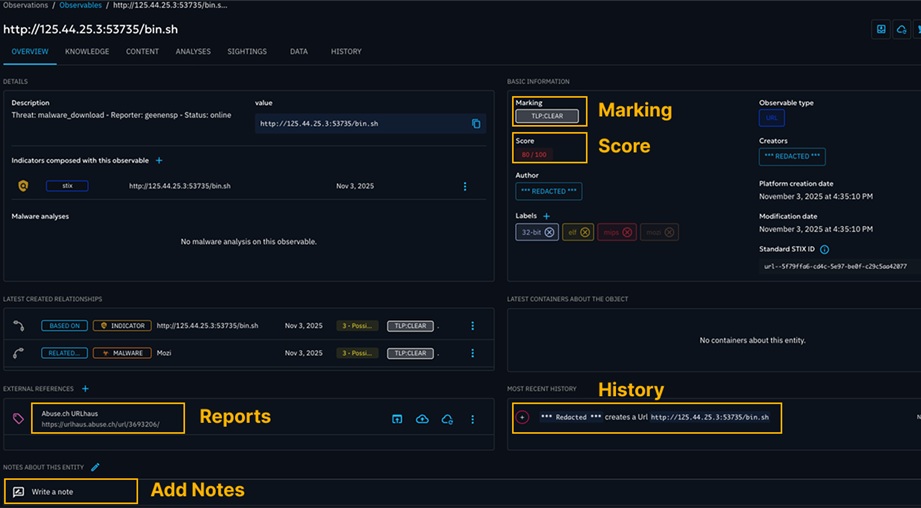
Open Observations → Indicators or Observables and read them like an evidence card.
- Check TLP (Traffic Light Protocol) to know who you can share with.
- Check confidence against your team’s threshold for action.
- Note the source and scan for a second source that says something similar.
- Look at last seen. If an item is stale for your environment, move on.
- If two sources disagree, capture that in a note so the next analyst does not repeat your work.
Always keep in mind that it is better to advance three solid items than to move twenty shaky ones.
You can use this quick card while you work:
- TLP: ____
- Confidence: ____
- Sources: ____
- Last seen or sighting: ____
- Duplicate or contradiction: Yes or No
- Linked entity: ____
- Decision: “Promote” or “Park” or “Discard”
From intrusion sets to decisions
Step 1. Orient on the intrusion set itself
Look for the MuddyWater intrusion set and open the entity. On the Knowledge tab, you should see a version of the Diamond Model. Read it like a map: adversary at the centre, with capabilities, infrastructure, and victims around it. Your goal is to understand the actor’s usual patterns before touching any indicators.
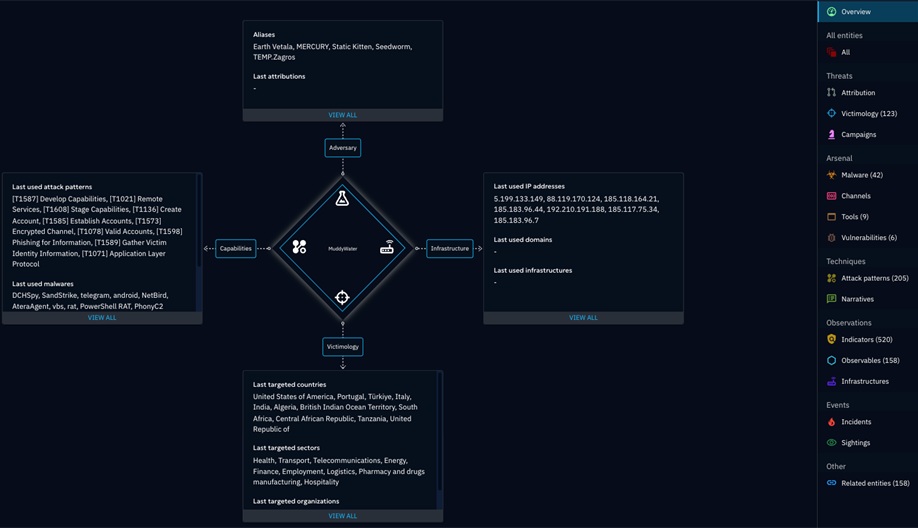
Step 2. Confirm what the actor is known to do
Still on the same entity, scan these built-in panels in order:
Attack Patterns
Note two or three techniques that actually show up here. These anchor your hunts and detections.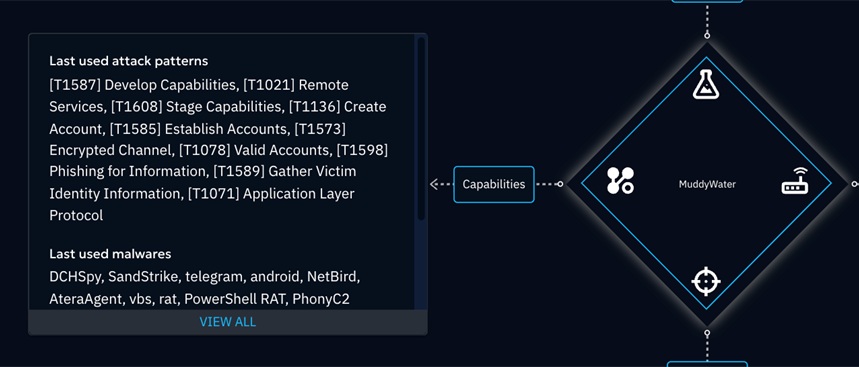
Malware and Tools
Look for families that repeat. Reuse hints at habits you can defend against.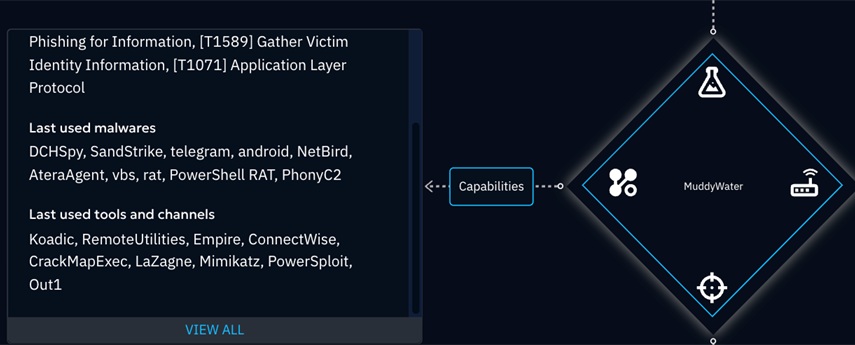
Infrastructure
Skim for consistent traits such as ASN ranges, registrars, or certificate issuers.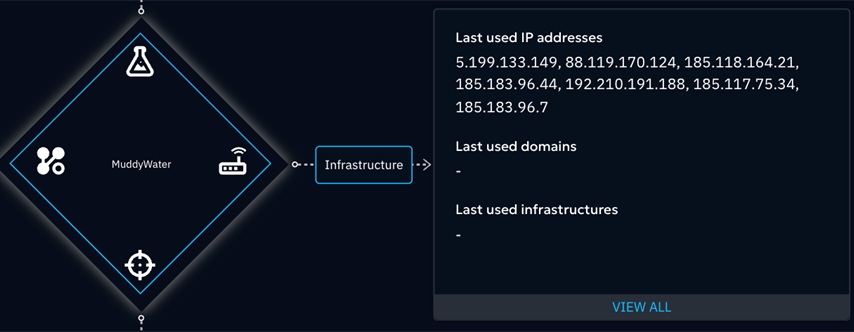
Keep a short note as you go: “This actor often uses X tools, prefers Y infrastructure traits, and is linked to techniques T1 and T2.”
Step 3. Validate the evidence and timing
Go to the Analyses tab. Pick one or two reports that support the relationships you just noted. Check markings, publication dates, and whether multiple reports tell the same story. If a relationship only appears once from a weak source, treat it as provisional.
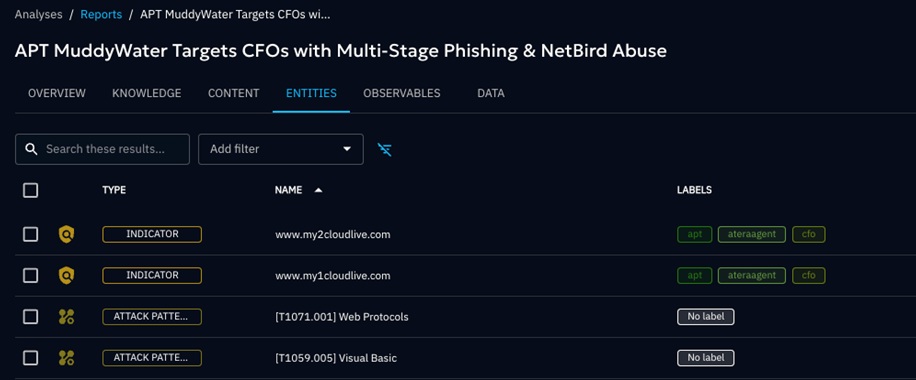
Step 4. Only now touch the raw items
Go to Observations → Indicators from the actor’s page links. You can filter by source, label and modification date. But remember, you are not collecting everything. You are testing whether any indicators fit the patterns you already confirmed. Keep items that align with the techniques, tooling, and infrastructure traits you just documented. Park the rest for later review.
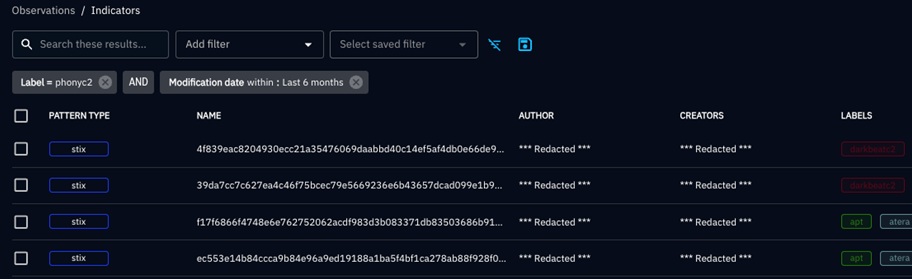
Tip: write a one-line rationale next to each promoted item, for example “recent URL, same registrar cluster as prior OilRig campaigns.”
Step 5. Create an investigation only if you need to show relationships
If you need to brief, hand off, or track a thread across multiple entities, open Investigations and create a New investigation. Add the same intrusion set, expand to Infrastructure and Indicators, and keep the scope tight. The investigation view is a presentation and collaboration surface, not the starting point.
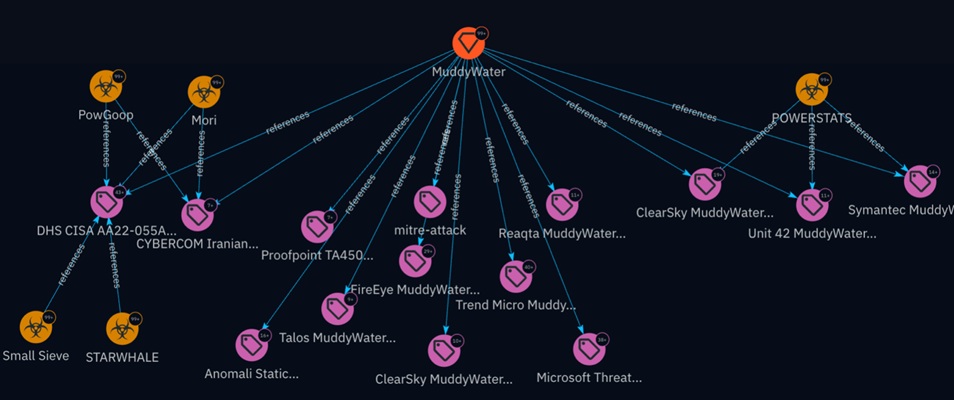
Indicators of Compromise in the demo
The demo often includes abuse.ch URLHaus, AlienVault OTX, AbuseIPDB, Shodan, ipinfo, and VirusTotal. Filter by one source at a time and work upward. If an indicator cannot be connected to the actor, a report, or recent activity, keep it in your scratchpad but do not promote it. If it aligns with the actor’s known behaviour and the last seen is recent for your environment, capture it in your brief with a clear review date.
Recommendations for analysis
- Use the quick card above whenever you promote something from feed to action. Consistent notes make handoffs easier.
- Set TTLs that match how quickly each item type goes stale in your network. Example to tailor: DNS 7 to 14 days, IP 14 to 30 days, URL 14 days, hash 90 days or more with renewal on sightings.
- Brief the SOC with two parts: the technique to hunt and the smallest credible set of indicators that support that hunt.
- Do a weekly hygiene pass. Collect what changed, expire what is past its review date, and resolve contradictions so the next analyst does not repeat your work.
- Prefer relationships over one-off hits. The more you can show pattern and reuse, the fewer false positives you will create.
Conclusion
Start at the threat layer, not the feed. Read the intrusion set like a map, confirm the story in reports, then test individual items against that story. Keep your scope small enough that you can explain every node and every indicator in one sentence. Promote only what you can defend to the SOC and give each promoted item a review date. If you need to show relationships or hand work to another team, build a focused investigation and keep it tidy.
In the next post we will stay in the UI and walk through modelling and normalisation. You will learn when to leave an item as an observable, when to treat it as an indicator, and when to promote infrastructure or a campaign so your knowledge stays coherent and useful.
Remember, there is always more intelligence to uncover.